How to Import, Export and Fix VALORANT Crosshair Codes
Written by Valorant Village
Source-backed coverage ●
VALORANT crosshair codes are quick to use once you know which profile you are changing. The awkward bit is that Riot’s original instructions name two icons, while the game’s Settings screens have since been refreshed.
Riot added crosshair import and export through auto-generated codes in Patch 4.05 on March 22, 2022. In Patch 12.07, published April 14, 2026, Riot said the PC Settings screens had been revamped. Use the current Crosshair page and its labels or hover tooltips; the older up-arrow and down-arrow locations below are Riot’s documented flow, not a promise that every client shows the same layout.
A code carries crosshair settings. It is not an aim test, and a popular player’s setup is not automatically right for your screen or habits. Import one, check what arrived, then decide whether you want to keep it.
Before you import
Copy the full code exactly as it was generated. Keep it in plain text while you move it between a post, message or note. Do not add quotation marks, trim the beginning or end, or “clean up” characters that look odd.
If you already like the active profile, export it first or duplicate it if that control is available. That gives you a way back if you paste into the wrong profile or decide the new settings are not for you. It is a small backup, but it saves a surprisingly annoying rebuild.
Import a crosshair code
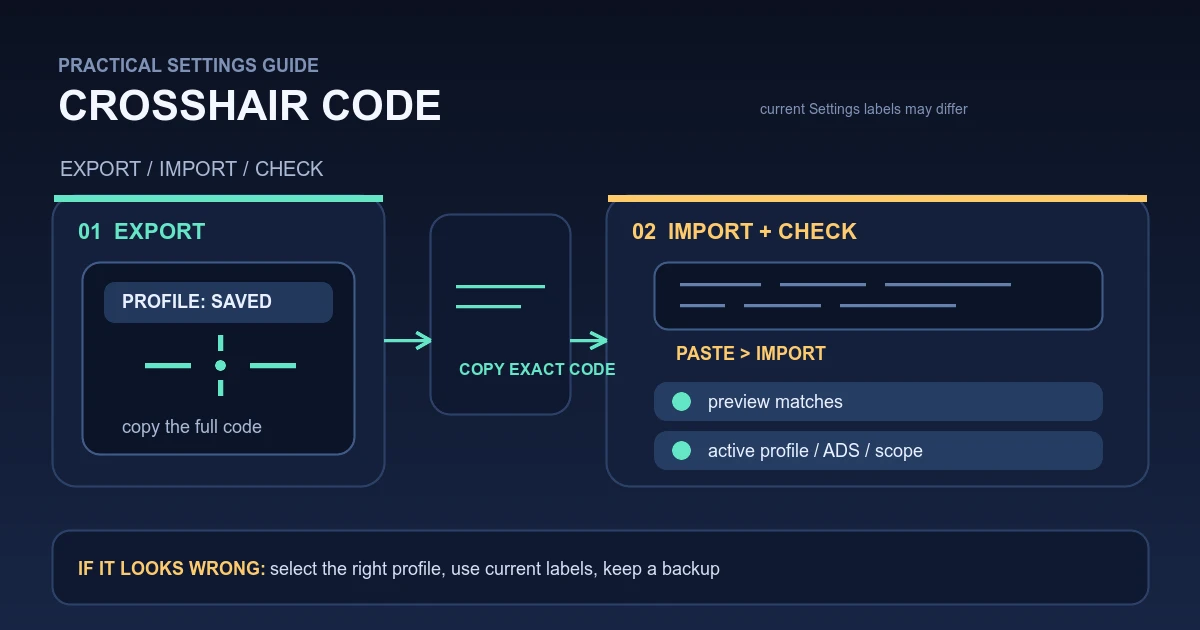
- Open VALORANT’s Settings and go to Crosshair.
- Find the Crosshair Profile controls. Riot’s Patch 4.05 notes describe an arrow pointing down beside the profile selector for importing. In the current client, use the control labelled for importing or the matching hover tooltip if the icon has moved.
- Paste the complete code into the field and select Import.
- Look at the preview before leaving Settings. Riot says the preview should reflect the imported settings, and its notes tell players to give the profile a unique name.
- Confirm that the imported profile is the one currently selected. A correct import on an inactive profile can look like a failed import when you return to a match.
If the client offers a profile name at this point, use something you will recognise later, such as green-dot-ads. The exact name does not matter. Knowing which profile you are looking at does.
Export and share your settings
Select the profile you want to save, then open the export control beside the profile selector. Riot’s original instructions call this an up-arrow and say it copies an auto-generated code to your clipboard. Paste the result into a plain-text note straight away. That is safer than trusting your clipboard to still contain it after you launch another app.
When sharing the code, send the whole string in one piece. Add the profile name beside it so you know what it was meant to represent. If you keep several profiles, save each code separately rather than replacing one backup with the next.
Riot also documented a different shortcut in Patch 5.04: while spectating another player, /crosshair copy or /cc imports that player’s crosshair as a new profile. That is useful for a live example, but it is not the same process as pasting a code.
Check what actually changed
Start with the preview, then inspect the sections you use. Riot’s 5.04 notes call out separate settings for Primary, Aim Down Sights and Sniper Scope, plus custom colour and independent horizontal and vertical line controls. If a code was shared as a screenshot or short description rather than a full export, those details may be easy to miss.
Take the profile into the Range or another low-stakes mode and check it at the distances where you normally place your crosshair. Look for the active profile name, centre gap, line length, outline, movement and firing behaviour, ADS, and scope view. This is a visual check, not a promise that the code will improve your aim. If something feels wrong, return to Settings and compare the individual values instead of importing the same code repeatedly.
When the import fails
If Import rejects the code or nothing changes, copy it again from the original source and paste the entire string without extra punctuation. Make sure you opened Crosshair rather than another Settings page, and check that the profile you are viewing is the profile you imported into.
If only the colour looks wrong, inspect the colour field after the import. Riot says a non-hex value entered for a custom colour reverts to the previous colour. A six-digit RGB hex value should be entered through the current colour control, not typed into the code by hand.
If the profile controls are missing, do not keep hunting for the exact old arrow graphic. Riot’s 12.07 Settings refresh means the labels or placement may differ. Look for the Crosshair Profile row, hover the controls, and check the client’s current help text. The documented function matters more than the icon’s shape.
If saved profiles keep disappearing, export a backup before changing anything and record your client version. Riot’s Patch 8.09 notes say the known profile-loss issue was fixed and direct players to Player Support if newly created profiles continue to disappear. Include the exported code and a short description of what vanished when you contact support.
Once the code imports, the useful question is simple: did the profile you meant to change receive the settings you expected? Check that first. The rest is preference.
For the next aim check, compare the imported profile with the resolution and aspect-ratio guide and the older input-setting investigation at what the configuration string actually tells you. Neither setting replaces a stable practice routine.
Official notes used
- Patch 4.05: 2022-03-22, crosshair code import/export flow.
- Patch 5.04: 2022-08-23, crosshair sections, colour and line controls, and
/crosshair copy. - Patch 8.09: 2024-05-14, crosshair profile-loss fix and support guidance.
- Patch 12.07: 2026-04-14, PC Settings screen refresh.